
Your YAPS Repository

IMPORTANT: This repository is a fork of the YAPS standard repository Exercise. The standard repository always contains the most up-to-date state of development and documentation. Please keep your repository, especially the docker-compose.yml and .gitlab-ci.yml files, up to date.
This repository is intended for creating exams. You can continue to use this repository and gather your exam tasks within it.
WARNING: Student data is confidential. As completely removing files from Git is extremely complicated, please never add personal data of exam participants to this repository.
Table of Contents
Preparation & Installation
-
An editor is required to edit the exam's configuration files. Using Microsoft Visual Studio Code (VS Code) is recommended.
-
A web server is necessary to view the created tasks locally on your computer. There are two options for this:
-
VS Code LiveServer Extension (preferred): Install the VS Code extension LiveServer (Install LiveServer). After installation, VS Code will display a new
Go Livebutton on the bottom right of the status bar. Clicking this button will start the web server and automatically open the web browser athttp://localhost:5500. -
Python 3: Install Python 3. Then, in a command line, enter the command
python3 -m http.server. Open the web browser athttp://localhost:8000.
-
-
When creating an exam, make sure to use a recent version of Google Chrome or the open-source variant Chromium.
Creating an Exam
-
Clone this repository and open it locally in VS Code as a project.
-
Start the web server and navigate to
http://localhost:<web server port>/viewer.htmlin Chrome or Chromium. You will get a preview of the created exam or initially a pre-configured exam with example tasks. -
Adjust the general fields for your exam in the
exam_config.jsonfile:"exam": { "module": "My Demo Exam", "examiner": "Prof. Dr. Jane Doe", "subject": "Exam", "semester": "Winter Semester 2022 / 2023", "duration": 90, "shortcut": "Demo Exam", "lang": "en" },Using the
langoption, you can specify the exam language. The valuesde(default) andenare accepted. The YAPS client (student view) will be automatically translated to the language you specify, but the admin dashboard is only available in German. -
Modify the superuser credentials as needed. You will need these login details to access the admin dashboard later and add more admins and supervisors.
"superuser": { "username": "root", "password": "" }, -
Remove the example tasks from
exam_config.json. -
Create tasks and add the path to the task folder in the exam_config.json. You can find instructions on how to create new tasks under Creating Tasks.
-
If necessary, adjust the names of programming tasks in
docker-compose.yml(otherwise, the compiler server won't recognize the tasks).
Creating Tasks
Using Templates
Your Git repository already contains numerous examples for various common question types used in exams. You can easily customize these examples to suit your needs.
Available standard question types as templates:
- Multiple Choice
- Single Choice
- Proof Puzzle
- Pseudocode Puzzle
- Sorting (Drag & Drop)
- Free Text
- Fill in the Blanks
- Numbers
- Graphs
- Charts/Plots
- Images
- Programming
You can find these examples under Repository → Files → exercises/examples.
How Examples are organized
The examples are grouped in the directory exercises/examples into three folders:
-
standard (Standard): This folder contains examples for questions with standard templates that are already predefined in the YAPS framework. In the
config.jsonfile, the question's content is defined. You can find information on how to populate question types in the respective Manpages. -
custom (Custom): Here, you will find examples for questions with custom templates. Each question consists of at least two files:
config.json: Here, you can define the content of your question.index.html: This is the customized template that you want to use for the question.
-
misc (Miscellaneous): This folder contains a selection of tasks that consist of subtasks from various question types. Additionally, you will find examples of individual question types that are not included in the standard templates.
Using Examples
- Open the relevant exercise task and copy its content.
- Go to Repository → Files → exercises and create a new folder for a new exercise task by selecting + → New File in the upper menu bar.
- Create a new file in this folder with the name config.json (select + → New File in the upper menu bar).
- Paste the copied content into this file.
- Adjust the relative path to the template to match your folder structure.
- Modify the content of the file to fit your exercise task.
- Save your changes.
- Add the path to the exercise folder in the
exam_config.jsonfile. Specify the desired name for the exercise and the points associated with it.
:loudspeaker: IMPORTANT: Please note the following requirements when adding questions to the exam_config.json file:
- Be aware of the distinction between upper and lower case in the file paths.
- Ensure that all task paths exist.
- Ensure that each task name is used only once.
- Avoid adding duplicates of tasks.
Using Manpages: Understanding the Structure of Question Types
For a detailed explanation and customization of question types, you can refer to the Manpages, which provide detailed information on the structure and available parameters for each question type. They describe how questions and tasks are organized within a specific question type.
Exams Administration
Changing Exam Language
By default, the language for YAPS exams is set to German. If you want to offer your exam in English, please follow these steps:
-
In the
exam_config.jsonfile, change the optionlangfromdetoen. This will automatically switch the YAPS client (exam interface) to English. -
In the
exam_config.jsonfile, specify the path to the English version of the general terms and conditions (AGBs) in thepresets. -
Use the English version of the overview page for evaluation reports. To do this, rename the file
frontmatter.en.ejstofrontmatter.ejs. -
Create your content in English.
Adjusting Exam Settings
Before conducting the exam, you need to adjust some settings in the examination system to plan the examination process. For the examination process, you particularly need to adjust the following sections in the exam_config.json file:
General Settings
   "process": {
        "rest_management": false,
        "time_management": "auto",
        "must_auditable": true,
        "must_validate": true,
        "cours_assign": "admin",
        "auto_activate_nbf": "2021-01-12T06:30:00.000Z",
        "auto_activate_nla": "2022-01-12T08:30:00.000Z",
        "start_exam": "app",
        "end_exam_nla": "2022-01-12T08:30:00.000Z",
        "when_done": ""
}-
rest_management (Restroom Feature): This feature allows participants to indicate their need to use the restroom. The exam will be locked during restroom breaks, but the exam duration won't be paused.
-
time_management (Time Management):
auto: The exam will be automatically concluded after the allocated time.off: Participants need to manually submit their exam or a supervisor must enforce submission through the admin panel.
-
must_auditable (Exam Eligibility):
true: The exam eligibility of each individual is queried. The person being examined must confirm their eligibility before starting the exam.false: Exam eligibility is not queried.
-
must_validate (Verification):
true: A supervisor must match each examinee's identity against an official identification document and mark them as verified in the admin panel. The YAPS exam system will issue a warning if the examinee hasn't been verified upon submission.false: Verification is not required.
-
course_assign (Enrollment):
auto: The exam is automatically available for enrollment.admin: A supervisor needs to enable the exam.between: The exam is automatically available for enrollment betweenauto_activate_nbfandauto_activate_nla.
-
start_exam (Start Exam):
app: A supervisor must start the exam through the admin panel.auto: The exam starts automatically.
-
when_done: Redirect to the entered URL after exam submission. If you don't have a URL to redirect to, you can enter
"".
Here is an example of how the options for tests in exam creation or assessments and for a traditional exam might look:
| Option | Tests / Exercices | Traditional Exam |
|---|---|---|
| rest_management | false | false |
| time_management | auto | auto |
| must_auditable | false | true |
| must_validate | false | true |
| course_assign | auto | admin |
| start_exam | auto | app |
General notes
   "presets": [
        {
            "name": "General notes",
            "path": "presets/agb",
            "confirm": true
        },
        {
            "name": "Notes to programming editor",
            "path": "presets/programming",
            "confirm": false
        }
    ]
You can adjust the general information in Repository → Files → presets → AGB.
- confirm (Confirm Terms):
true: If the general information should be confirmed before the exam can start, setconfirmtotrue.false: General information doesn't need to be confirmed.
Creating and Deploying Exam Servers
:loudspeaker: IMPORTANT: The infrastructure rollout is automatic and controlled by the files .gitlab-ci.yml and docker-compose.yml. Please keep these files up to date, just like the YAPS standard repository Exercise.
Now that you have completed your exam or reached a stage you want to test live on the YAPS server, you need to deploy an instance of your exam.
:warning: WARNING: With every new tag, an isolated exam environment with multiple (Docker) components is created, which consumes a significant amount of resources on the YAPS server. Therefore, when testing, please use the same tag as much as possible by deleting and recreating it. The data for the newly deployed instance will be retained.
-
Publish or push your exam.
-
To deploy your exam or exercice, navigate to your project on TUHH GitLab. Then, in the left sidebar, select Repository -> Tags.
-
Create a new tag using the New tag button.
- Use a meaningful abbreviation for the exam as the Name, for example,
ws20/21test 1 - In the Create From field, choose the branch to be used for the exam. Typically,
master - The Message field is optional. You can leave it blank or provide a more user-friendly form of the short name. For example,
Winter Semester 2020 / 2021 Test 1 - The Release Notes field is optional. You can provide information like date, location, examiners, etc. This can serve as a reminder for you later. As long as you don't delete the tag, you can revert to this state.
- Use a meaningful abbreviation for the exam as the Name, for example,
-
In the left navigation, select Operations -> Environments. Your exam instance will be displayed.
-
Wait until the deployment is complete.
-
Use the Open live environment button to access the admin panel of your exam.
- Alternatively, you can access the admin panel at
http://yaps.zll.tuhh.de/{project-name}/{tag-slug}/exam/admin/instance/.
- Alternatively, you can access the admin panel at
-
If your exam is not yet available (Error 404 or 502), wait for about 5 minutes for it to become accessible on the network.
-
If your exam is still not available after 5 minutes, check CI/CD -> Pipelines to see if the last deployment was successful, and then contact Support.
-
-
Initially, log in with the superuser account and add yourself and any other supervisors to the system for this exam. Make sure to assign the correct roles to yourself and the supervisors.
:warning: WARNING: Keep in mind that the superuser cannot be accessed by multiple users simultaneously.
Testing the Exam in Advance
To identify potential errors in the settings or questions beforehand and to verify the completeness and correctness of the questions, it's recommended to test the exam in advance once it's complete with all questions.
:bulb: TIP: It's advisable to test the exam twice: once fully with correct answers to achieve full marks, and once empty to obtain 0 marks. This will help ensure that the grading is correct.
Here's how you can proceed to test your exam:
-
Open the admin area of the exam in your Git repository.
-
The exam's login screen will appear on your screen. Copy the URL of the exam and open it a second time in an incognito window.
- To open an incognito window in a Chrome browser, click the three dots in the upper right corner of the browser's menu bar and choose "New incognito window" from the options that appear. You can also use the keyboard shortcut Ctrl + Shift + N.
- You now have the opportunity to test the exam once from the supervisor's perspective (exam admin, supervisor) and once from the participant's perspective.
:bulb: TIP: As the exam administrator, you can also provide the exam link to other designated supervisors (exam admin, supervisor) for testing the exam.
-
Set up access to the respective instances
-
Role: Supervisor
- You'll see the login screen in your normal Chrome window.
-
Role: Participant
- In the incognito window, please DO NOT log in with your credentials. Instead, click the "I'm in the wrong place...to the exam" button. This will load the exam system, where you'll see the questions. Alternatively, you can access the exam at
http://yaps.zll.tuhh.de/{project-name}/{tag-slug}/exam/client/instance/. - You'll see a message that the exam needs to be unlocked by a supervisor. The system is in waiting mode. However, this might vary based on how you've customized your exam process.
- In the incognito window, please DO NOT log in with your credentials. Instead, click the "I'm in the wrong place...to the exam" button. This will load the exam system, where you'll see the questions. Alternatively, you can access the exam at
-
-
Unlocking the exam
-
Role: Supervisor
- Log in with your credentials in the normal Chrome window. This will take you to the exam's administration panel.
- In the side navigation, select Exam → Instances (Prüfung → Instanzen) and scroll down.
- Select the instance ID, which is a six-digit number, from the exam system window (incognito window). This will open the admin area for this instance.
- Press the "Unlock (Freischalten)" button to activate the login screen in the exam system. Confirm the triggered message with "ok".
-
Role: Participant
- The login screen will open in the incognito window. In this case, DO NOT use your university credentials for login, as it would allow you to perform/test the exam only once. Instead, wait for the supervisor to bypass the login.
-
-
Bypassing the login
-
Role: Supervisor
- To create the opportunity to test the exam multiple times, you need to reload the administration panel in the Chrome browser.
- After the refresh, again navigate to Exam → Instances (Prüfung → Instanzen) in the side navigation and select the six-digit instance ID from the incognito window.
- This will allow you to bypass the login and perform the exam multiple times with a fake account. For this, choose an imaginary student ID. You can use your abbreviated name with a digit, incrementing the digit for each test run. Note: Do not use a "#" character before the digit!
- Select the "Bypass Login (Login umgehen)" button and confirm the warning with "ok".
- After the participat confirm the general notes, start the exam.
-
Role: Participant
- With the bypassed login, you will now see the general exam notes in your incognito window without having actively logged in for the exam.
- To test the exam, if necessary, maximize the incognito window (F11 keyboard shortcut). This will provide the same view as participants will have during the exam.
- Confirm the general notes to be ready to start the exam. After the supervisor starts the exam, the questions can be tested after a brief loading period.
-
-
Testing the exam
- Now you can try out all the questions as well as the features of the administration panel.
- For repeated testing after submitting the exam, please repeat the steps and choose a different (preferably sequentially numbered) student ID for bypassing the login.
Testing the Exam with YAPS Browser
YAPS Browser is a browser based on Chromium. It is used on AMH laptops and PC pools for electronic exams. The YAPS Browser is launched in kiosk mode to ensure a secure exam environment.
Therefore, it is strongly recommended to test the exam in advance using the YAPS Browser if you intend to conduct the exam on AMH laptops or in PC pools.
How to Start Your Exam with YAPS Browser
-
Download YAPS Browser: Download Here.
-
Unpack the archive if you've chosen the portable version.
-
Open a terminal and navigate to the directory containing the YAPS Browser.
-
Make sure the
yapsfile is executable. -
Start the YAPS Browser as follows:
-
Linux
./yaps --no-sandbox --lockdown yaps:url-to-your-yaps-instance-or-web-applicationOr:
./YAPS-2.6.5.AppImage --no-sandbox --lockdown url-to-your-yaps-instance-or-web-applicationFor example:
./yaps --no-sandbox --lockdown yaps:https://yaps.zll.tuhh.de/yaps-ws/live-demo/examserver/client/instance -
Windows
.\YAPS.exe --no-sandbox --lockdown yaps:url-to-your-instance-or-web-applicationFor example:
.\YAPS.exe --no-sandbox --lockdown yaps:https://yaps.zll.tuhh.de/yaps-ws/live-demo/examserver/client/instance
-
Starting YAPS Browser with DevTools Enabled
To run the YAPS Browser with the browser's Development Tools (DevTools) enabled, use the --devtools parameter as follows:
-
Linux
./yaps --no-sandbox --lockdown --devtools yaps:url-to-your-yaps-instance-or-web-application
:bulb: TIP: To close the YAPS Browswer use the keyboard shortcut "
Ctrl + Alt + Backspace
Evaluation process in the YAPS examination system
Automatic evaluation
As soon as the exam is finished, you can initiate the process of automatic evaluation to correct the tasks that are suitable for automatic evaluation. In the admin area under "Bewertung (Evaluation)", select the option "Teilnehmer bewerten (Evaluate participants)" and start the evaluation by clicking on "Auswertung beginnen (Start evaluation)". A progress bar shows the progress of the evaluation. After completion, a report is created for each participant, which you can view and check by clicking on the loupe symbol.
Manual evaluation
After the automatic evaluation, you can switch to manual evaluation if you have tasks which should be evaluated manually. To do this, select the corresponding task and open it by clicking on the pencil icon.
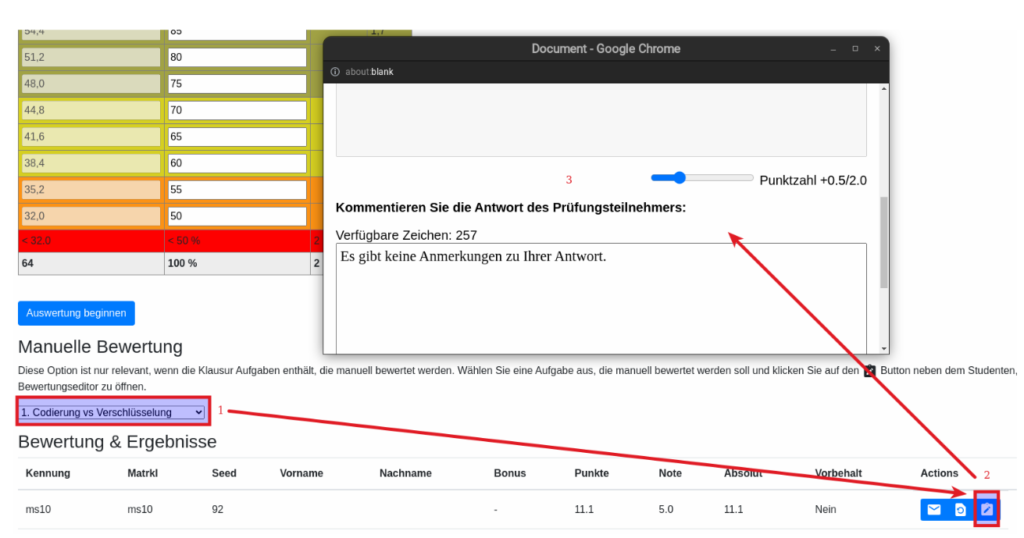
In the new window, you can perform the evaluation and add comments. Close the window after you have completed the evaluation; the report will then be updated automatically. Repeat this step for all tasks to be evaluated manually for each participant.
:loudspeaker: IMPORTANT: To enable the generation of reports, initiation of automatic evaluation is required, even if the exam includes only manually assessable tasks.
Evaluation of Hybrid Exams
For hybrid exams (digital exams with tasks that also need to be solved on paper), there is the option to correct written tasks using the manual evaluation function. For this purpose, written tasks in YAPS must be created as manually assessable tasks. This ensures that the results are taken into account in the reports.
Exam Review in the YAPS Examination System
Each PDF evaluation report includes not only the assessed tasks but also a summary page with bonus points, grade distribution, and final result. As an examiner, you are free to decide whether you want to send only the cover page, the entire report via email to the participants, or if you prefer a conventional on-site exam review.
:warning: ATTENTION: Participants under reservation and those who participated in the exam by bypassing the login (Login umgehen) will be excluded from the dispatch.
Archiving the examination results
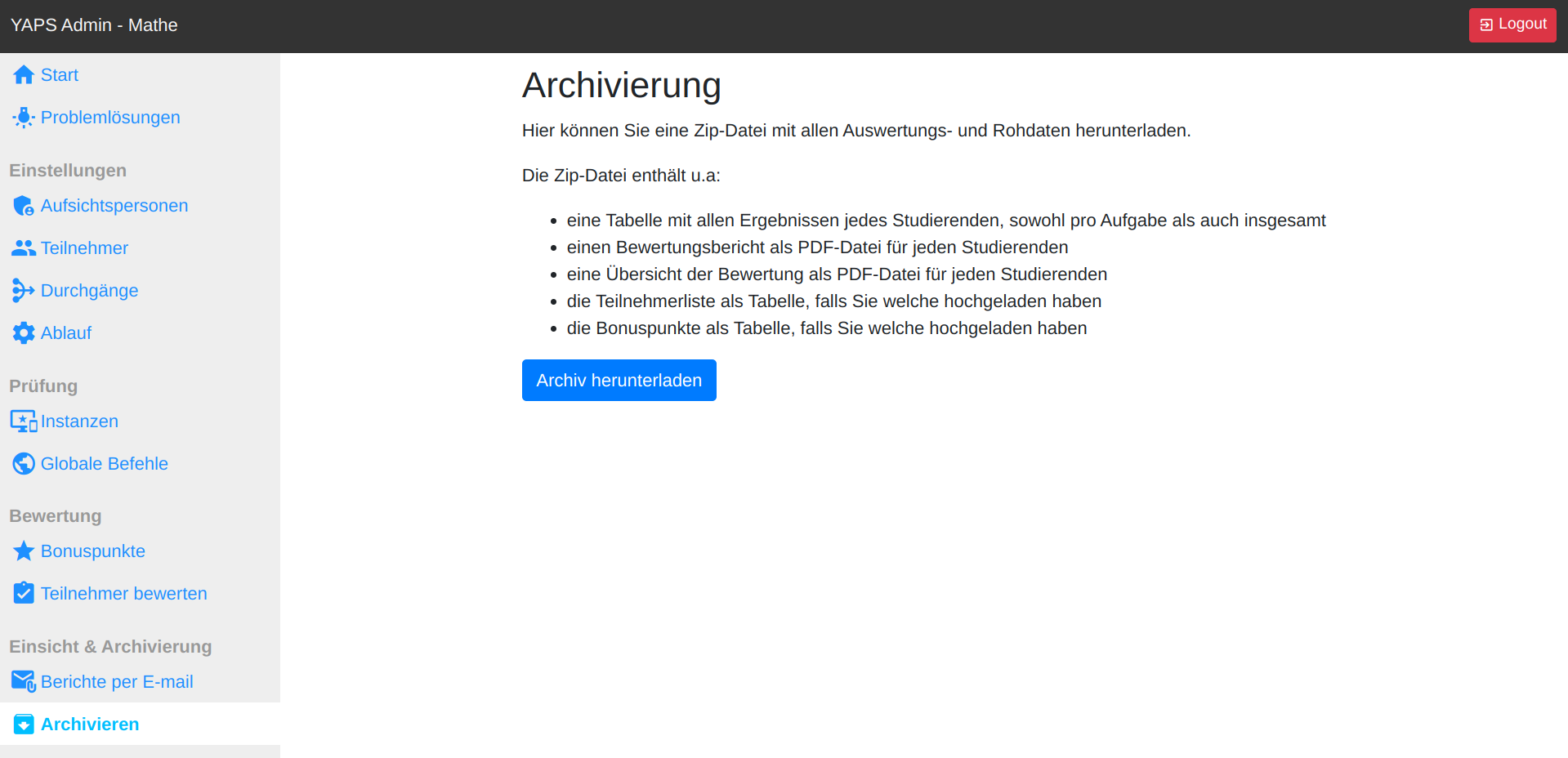
To download an archive of the exam results, navigate to "Einsicht und Archivierung (View and archive)" in the side menu and select "Archivieren (Archive)". By clicking on "Archiv herunterladen (Download archive)" you can download the zip archive, save it locally and transfer it to a storage medium for later archiving.
Documentation
Whether you're seeking comprehensive insights or practical assistance with the YAPS examination system, the following resources can be quite helpful:
- YAPS Overview: Explore YAPS and discover its versatile applications.
- YAPS Online Course: Dive into our interactive online course to acquaint yourself with YAPS step by step.
- Guides and YAPS Browser: Access downloadable YAPS Browser for Windows and Linux, along with informative guides about the YAPS examination system.
Support
Contact Us
Do you have any questions or suggestions about electronic assessments at TUHH? Feel free to reach out to us!
- Contacts at Partner Institutions
- Email: e-pruefungen@tuhh.de
Workshops and learning opportunities
Interested in exploring electronic assessments or enhancing your knowledge? Join our workshops and informational sessions!
- Workshop Schedule: Check out the upcoming dates for workshops and informational sessions.
Mailing List for the YAPS Examination System
To receive technical updates and announcements about the YAPS examination system, you can subscribe to the mailing list yaps@tuhh.de. Follow these steps to subscribe:
- Send an email to sympa@tuhh.de from the email address you want to use for the mailing list subscription.
- In the subject line of your email, enter the following: "subscribe yaps First Name Last Name" (replace
First NameandLast Namewith your own first and last name). - Leave the message body empty.
- You will receive a welcome message once the subscription is successfully completed.


